A Telegram account
Used to create and control your private bot.
A self-hosted Telegram terminal for Polyester testnet. View balances, place orders and manage strategies from your own computer or VPS.

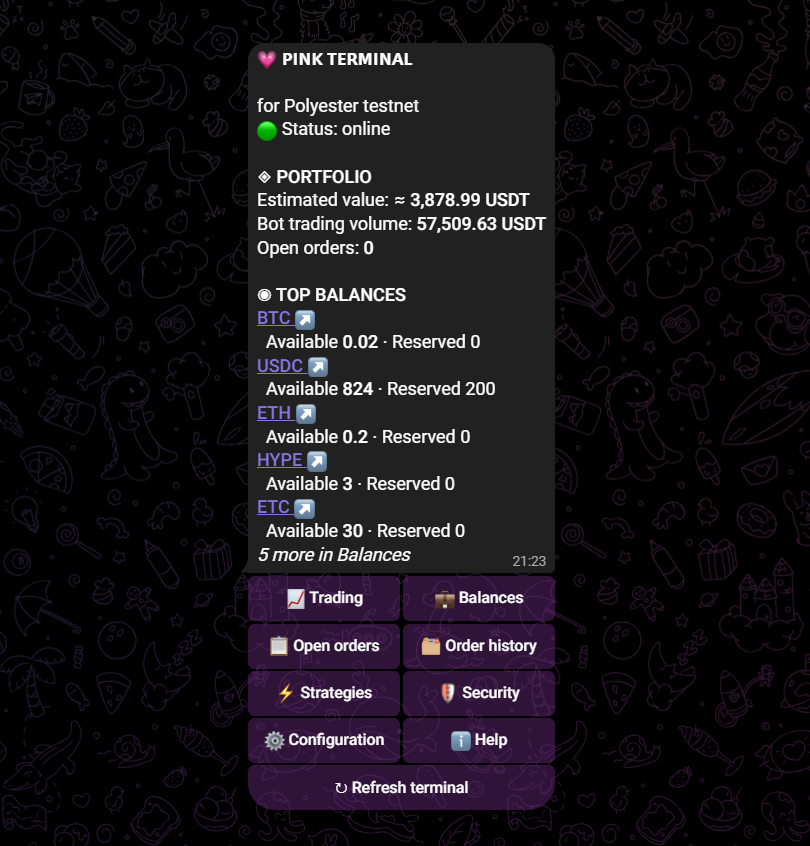
💗 PINK TERMINAL
for Polyester testnet
Status: online
PORTFOLIOEstimated value: ≈ 7,787.56 USDT
Volume: 54,719.80 USDT
Open orders: 4
Before you begin
You will need a Telegram bot and a dedicated Polyester testnet API key. Choose where to run the bot below.
Used to create and control your private bot.
Created through the official BotFather account.
With an API key that can read balances and place spot orders.
Telegram bot token, Polyester private key and VPS password. Never paste them into Discord, support chats, screenshots or a public repository.
Choose your setup
The bot stays online when your own computer is switched off.
Install from your terminal. Keep your computer awake and online.
Server
A VPS is a rented remote server. It keeps the bot running without leaving your own computer on.
Suggested starting specifications, not a measured minimum. Monitor CPU, memory and disk usage after installation.
Select Ubuntu 24.04 LTS (or 22.04 LTS) and a nearby region.
Copy the server IP, SSH username and password or private key.
Enable two-factor authentication with your VPS provider.
Remote access
These steps use MobaXterm on Windows. You can also connect with another SSH client, including Terminal on macOS.
Official downloadmobaxterm.mobatek.net ↗Open Session → SSH.
Use the public IP from your VPS provider. Keep port 22 unless your provider specifies another.
Usually root or ubuntu. Your provider will tell you which one applies.
Confirm the host fingerprint against your provider's control panel, then use the supplied password or SSH key.
If it changes unexpectedly, verify the server identity with your VPS provider before connecting.
Credentials
Create a bot through Telegram's official @BotFather. Keep its token private: it grants control of the bot.
Open in Telegram@BotFather ↗Check that the username is exactly @BotFather and that it is verified.
/newbotChoose a display name and a unique username ending in bot.
Keep it in a password manager until the installer asks for it.
Use your Telegram user ID, not your @username. The bot uses this ID to restrict access.
Credentials
Create a dedicated key for the bot. Polyester uses an Ed25519 keypair: register the public key with your account and keep the private signing seed on the computer or VPS running the bot.
ak_…64 hexadecimal charactersSelect Write for Spot trading; it includes Read access. Balances requires only Read. If using a Subaccount, its policy must also permit trading.
In Polyester's API key settings, you can allow requests only from your bot's public IP. For a VPS, use the server's IP; for a local installation, use your connection's public IP. Only enable this if the address is stable, and update it if your network changes.
Deployment
The installation steps depend on where the bot will run.
Choose VPS or local →Run this command on your Ubuntu VPS to open the setup wizard.
curl -fsSL https://raw.githubusercontent.com/web3cadet/pink-terminal/main/install.sh | bash -s -- --repo https://github.com/web3cadet/pink-terminal.git
This command downloads and runs install.sh from GitHub ↗. Read the script before running it.
Review the testnet scope and usage risks before continuing.
Bot token and allowed numeric user ID.
API Key ID, matching private signing seed and optional subaccount ID.
Builds the container, checks API access and starts the bot.
Secrets are written to the VPS .env file with restricted permissions. They are not sent to a shared bot operator.
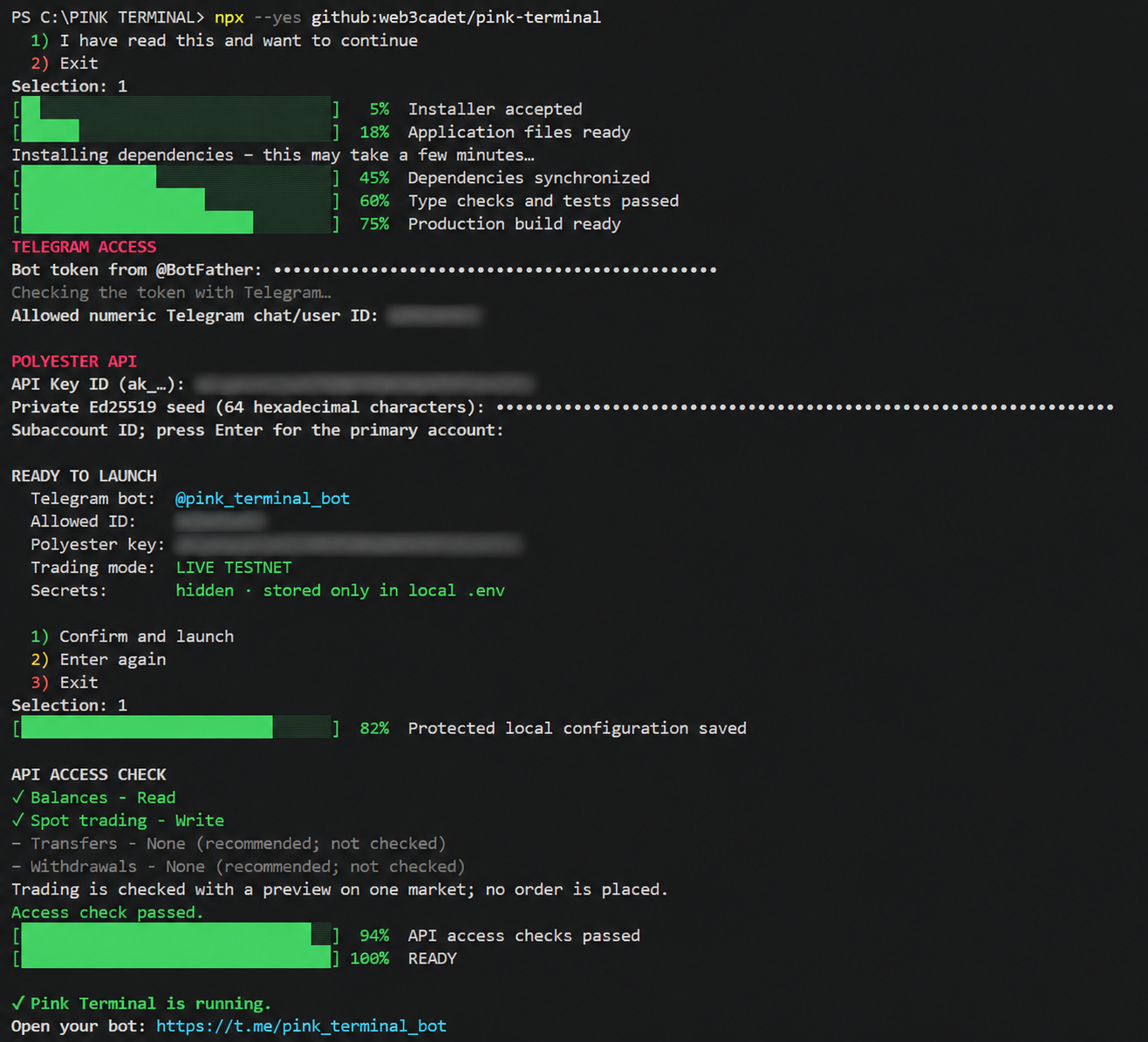
Install Node.js 22.12 or newer and Git, then open an empty folder in VS Code. On macOS, you may also use Terminal. Run the command below and follow the setup wizard.
npx --yes github:web3cadet/pink-terminal
The installer runs code from the public GitHub repository ↗.
Downloads the application from GitHub into the selected folder.
Installs dependencies, runs checks and builds the application.
Enter your Telegram token and user ID, then your API Key ID, private signing seed and optional subaccount ID.
Checks API access, starts the bot in the background and displays its Telegram link.
The wizard saves credentials in .env. This is a plain-text configuration file, not an encrypted vault. Keep it private and exclude it from shared folders and public repositories.
Keep your computer awake and online while using the bot. Installation does not enable automatic startup after a restart.
First launch
Inside the bot
Open your bot in Telegram to browse markets, trade and track your orders.
Browse available pairs, price charts and order books.
Buy or sell at market prices, or set your own limit price.
Track open orders, filled amounts and order history.
Set up ladder orders and other supported testnet strategies.
View the value of filled trades recorded by this installation.
Check the pair, side, amount and order type. After submitting, check Orders for the final result.
Operations
Select your setup to see the right management commands.
Choose VPS or local →The bot runs in a background Docker container and remains active after you disconnect from SSH. Run these commands from any folder, including /root. Each command opens the bot's installation folder first:
cd "$HOME/polyester-trading-terminal" && ./manage.shUse the same SSH user as during installation. For root, the default folder is /root/polyester-trading-terminal. If you chose a custom installation folder, replace the path in these commands.
After editing .env, select Restart in the menu or run:
cd "$HOME/polyester-trading-terminal" && docker compose up -d --force-recreate botcd "$HOME" && bash "$HOME/polyester-trading-terminal/manage.sh" uninstallUninstall asks you to type DELETE. It saves .env in a private pink-terminal-backup-* folder inside your home directory, then removes the installation folder, local history and logs. The backup path is printed in the terminal. Exchange orders and strategies are not cancelled.
If you uninstalled from inside the bot folder, run cd "$HOME" first. For root, this returns to /root. Then run the installer again. The command above already changes your directory before uninstalling.
The bot runs in the background while your computer is awake and online. Start it again after a reboot or logout. Open the management menu from the installation folder:
npm run manageAll controls in one menu. You can also run each command directly:
npm run bot:startnpm run bot:stopnpm run bot:restartnpm run bot:updatenpm run bot:statusnpm run bot:logsnpm run bot:uninstallnpm run bot:configureChoose Reconfigure credentials in the menu to change your settings. You can also edit .env and run npm run bot:restart. Reconfiguration stops the bot while you make changes.
npm run bot:uninstallChoose Update in the menu or run npm run bot:update. After confirmation, the bot stops, installs and checks the latest code, then restarts. Your credentials and local data are kept. Application files are replaced, so back up custom code first. Reopen the menu after updating. For older installations without this command, run the original installer in the same folder.
Back up any history you want to keep. Type DELETE to stop the bot and permanently remove its installation folder, dependencies, local history and logs. Your .env is backed up outside the installation folder. Exchange orders and strategies are not cancelled.
Unrelated top-level files block uninstall; keep personal files outside bot subfolders. Uninstall leaves your Telegram bot account, system tools and package caches in place. Local uninstall does not remove Git source checkouts; Ubuntu uninstall requires a checkout without local changes. If Windows keeps the old folder locked, the manager reports it; leave that folder in your terminal before reinstalling.
Protect your access
Create a new Polyester API key instead of sharing one with other apps.
Balances: Read. Spot trading: Write. Transfers and withdrawals: None.
Enter your own numeric user ID during setup to control who can use the bot.
Do not share .env, bot tokens or private keys, including in screenshots.
Keep your computer or VPS, Node.js and the bot up to date.
Revoke exposed keys in Polyester or tokens in BotFather, then update the bot's settings.
Common problems
api_key_policy_required+Check the key's permissions in Polyester: Balances → Read and Spot trading → Write. Save the policy, then retry the installer check.
TIMESTAMP_SKEW+The computer or VPS clock is out of sync. Enable automatic time synchronization, then retry.
SIGNATURE_INVALID+Polyester could not verify the request signature. Check that the API Key ID and private signing seed belong to the same key and were copied correctly. This is an authentication error, not proof of missing permissions.
IP_NOT_ALLOWED+Check that the key's IP allowlist includes the public IP of the computer or VPS running the bot. For a single IPv4 address, use YOUR_PUBLIC_IP/32.
Check balance-read permission and the selected account or subaccount. Assets in the funding account may need to be moved to the trading account before placing orders.
Check the allowed numeric Telegram ID. Open the management menu with npm run manage from the installation folder on Windows or macOS, or cd "$HOME/polyester-trading-terminal" && ./manage.sh on Ubuntu, then check Status and Logs.
Short answers
No. This bot runs on Polyester testnet, not mainnet. Beware of scammers and follow only official Polyester sources ↗ for network announcements.
No. It is an independent community project with an open-source bot.
No. It needs the ak_… Key ID and matching private signing seed. The public key is already registered in Polyester.
Yes, on Windows 10 / 11 or macOS (Beta). The bot is unavailable while the computer sleeps or is offline. Start it again after a reboot or logout.
No. In the self-hosted model, credentials stay in the local server configuration you control.
Transfers and withdrawals are not currently supported. Leave both permissions set to None.
On Windows, access is restricted to your user, administrators and the system. You can open and edit it normally; other standard users cannot. File permissions are not encryption and do not block software running with your access.
Use Reconfigure credentials in the management menu. Old confirmation and control buttons are invalidated when the API configuration changes; refresh Orders or Strategies before continuing. Local history and statistics are retained, not separated by account.
No. Orders and strategies already accepted by Polyester remain on the exchange. Review or cancel them there before removing the bot. Uninstall removes local history and logs, and saves a backup of .env outside the installation folder.
Wait for the installer's success message, open the Telegram link and send /start. If the bot does not respond, check Status and Logs in the management menu.